Image every client’s PCs from one server.
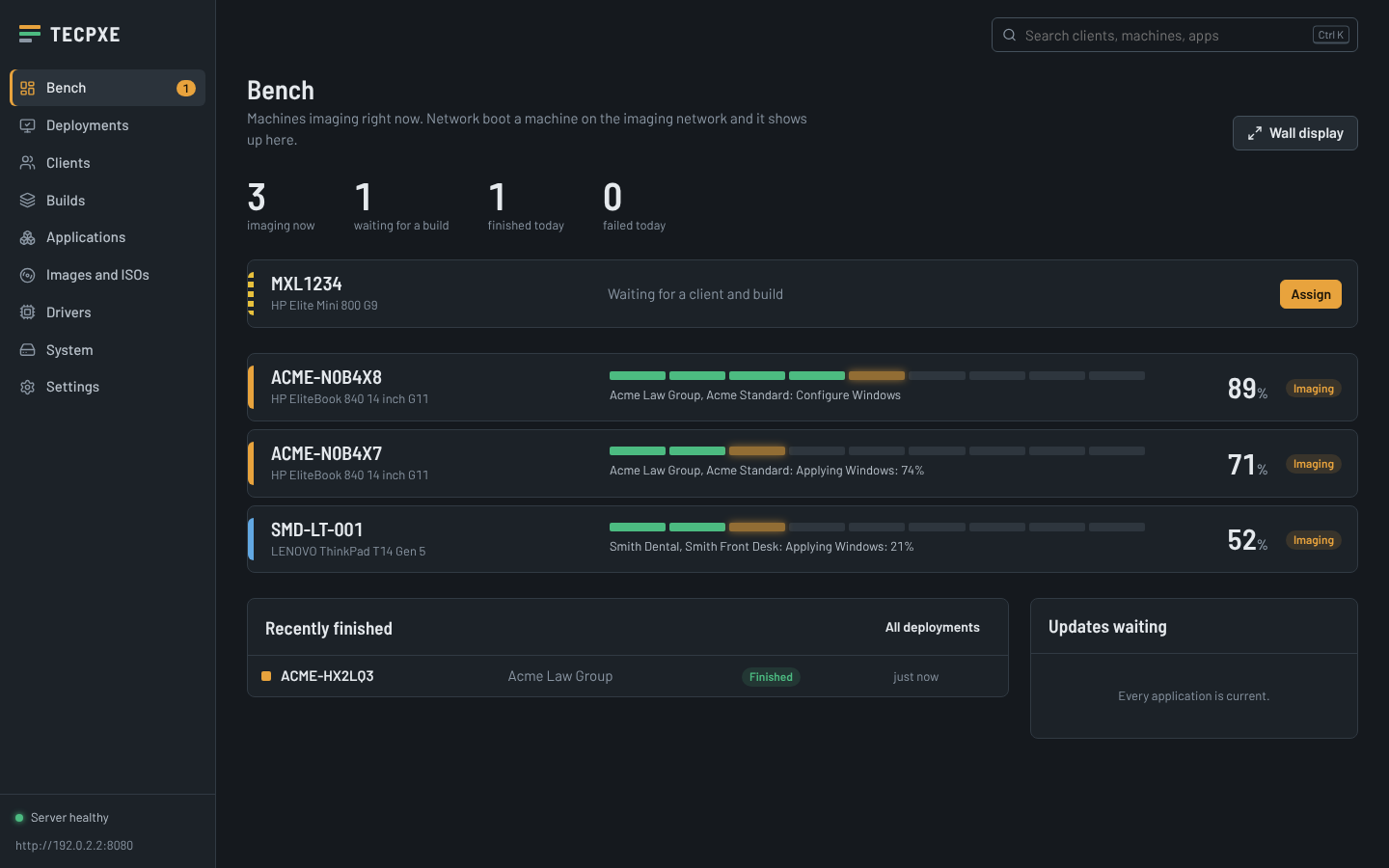
Boot a machine from the network, pick the client and build, and walk away. TECPXE installs Windows, the right drivers, and every app that client needs.
Free and open source. Installs on Windows 10, Windows 11, or Windows Server with one setup file.
Built for how MSPs image machines
SCCM is too heavy for most MSPs, FOG’s images are tied to hardware, and ISO boot tools stop at the installer. TECPXE takes the useful parts of each and adds the per-client setup that MSPs actually need.
One server, every client
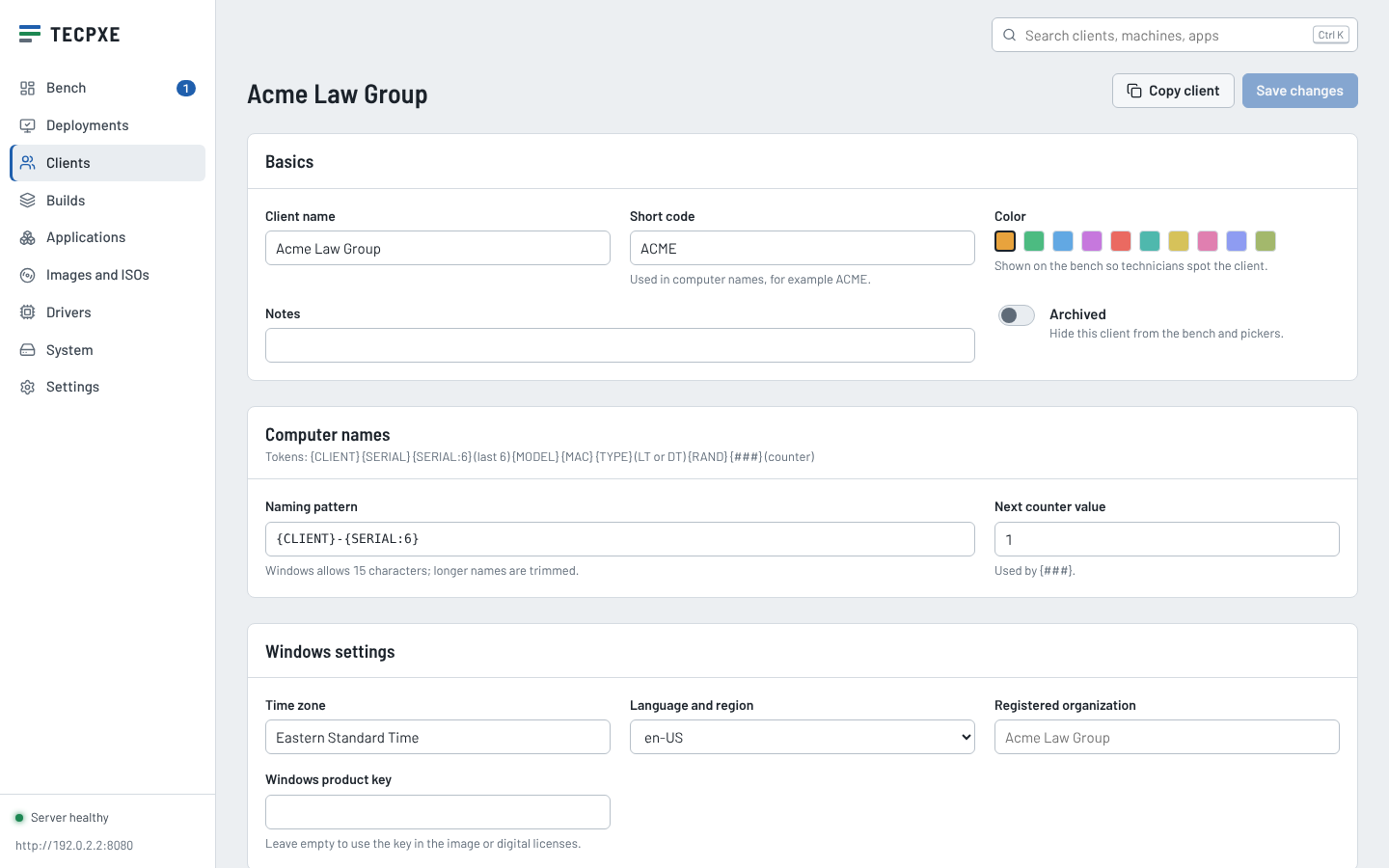
Each client keeps its own computer naming, domain or workgroup join, local admin, RMM and EDR keys, license numbers, and builds. Forty clients or four hundred, the bench stays the same.
Windows plus every app
Builds install Windows, then applications in the right order: runtimes first, then core apps, client apps, and agents last. Each install is checked and reported.
Apps that keep themselves current
Turn on auto-update per app. When Chrome, 7-Zip, Reader, or anything in winget gets a new version, TECPXE downloads it, verifies it, and puts it in Pilot before Production.
Drivers found automatically
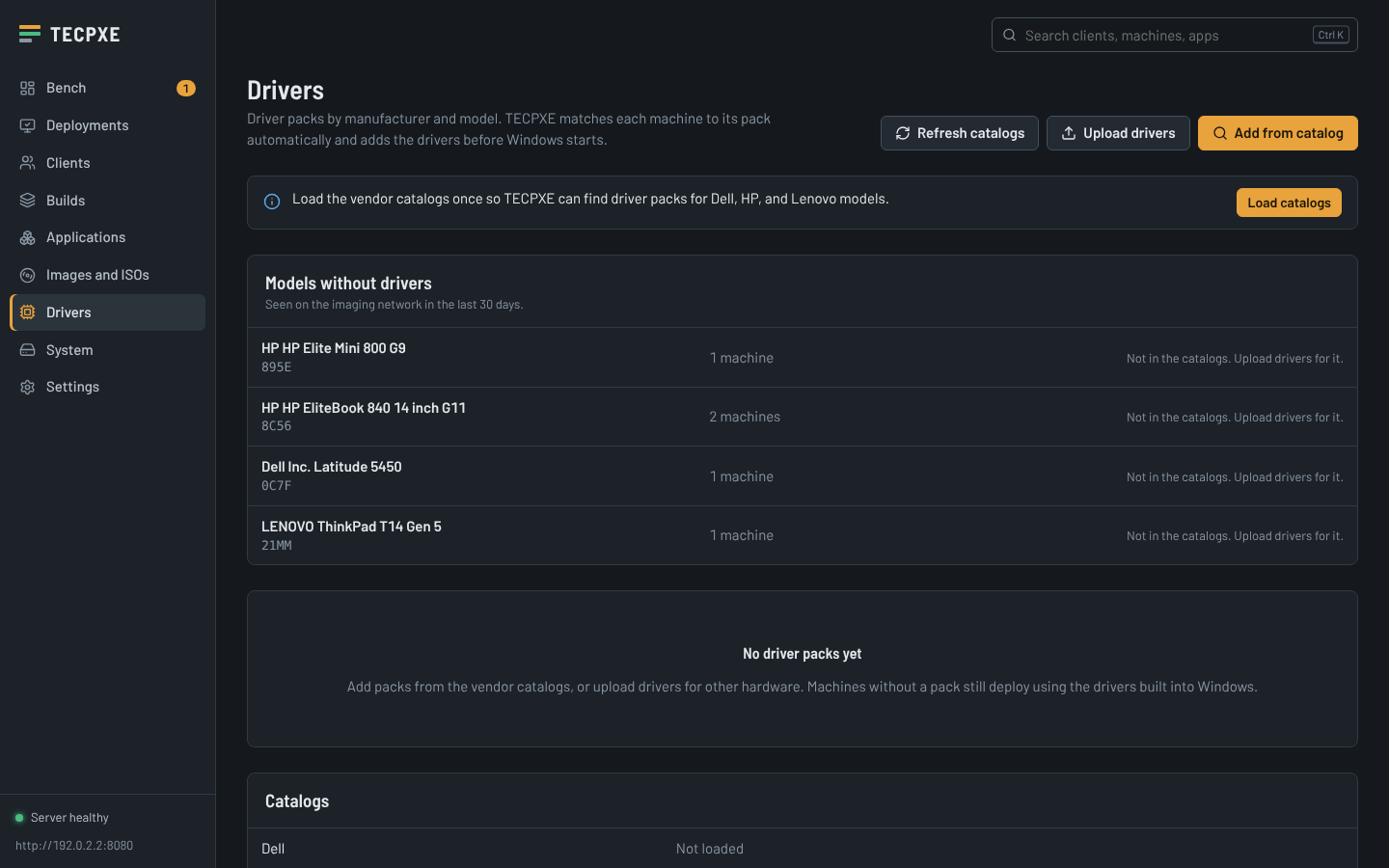
Dell, HP, and Lenovo driver packs come straight from the vendor catalogs. When a model TECPXE has never seen boots, it downloads that model’s pack on its own.
Builds that inherit
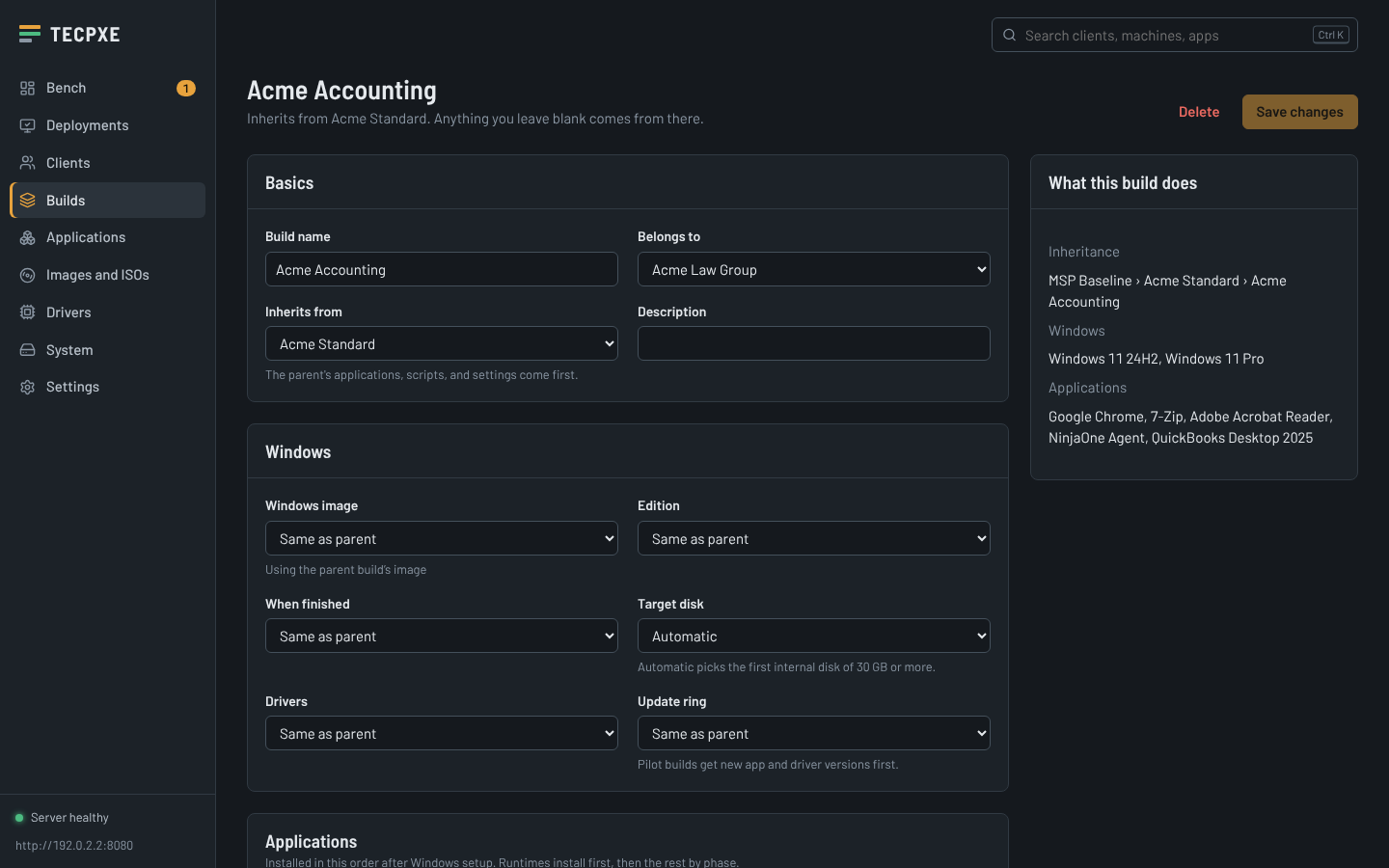
Make one MSP baseline, then client builds on top of it. Update 7-Zip in the baseline once and every client gets it.
A whole bench at once
Image a mix of clients side by side, pre-stage machines by serial number so they install themselves, or run a batch of 25 laptops from one screen.
Keeps itself running
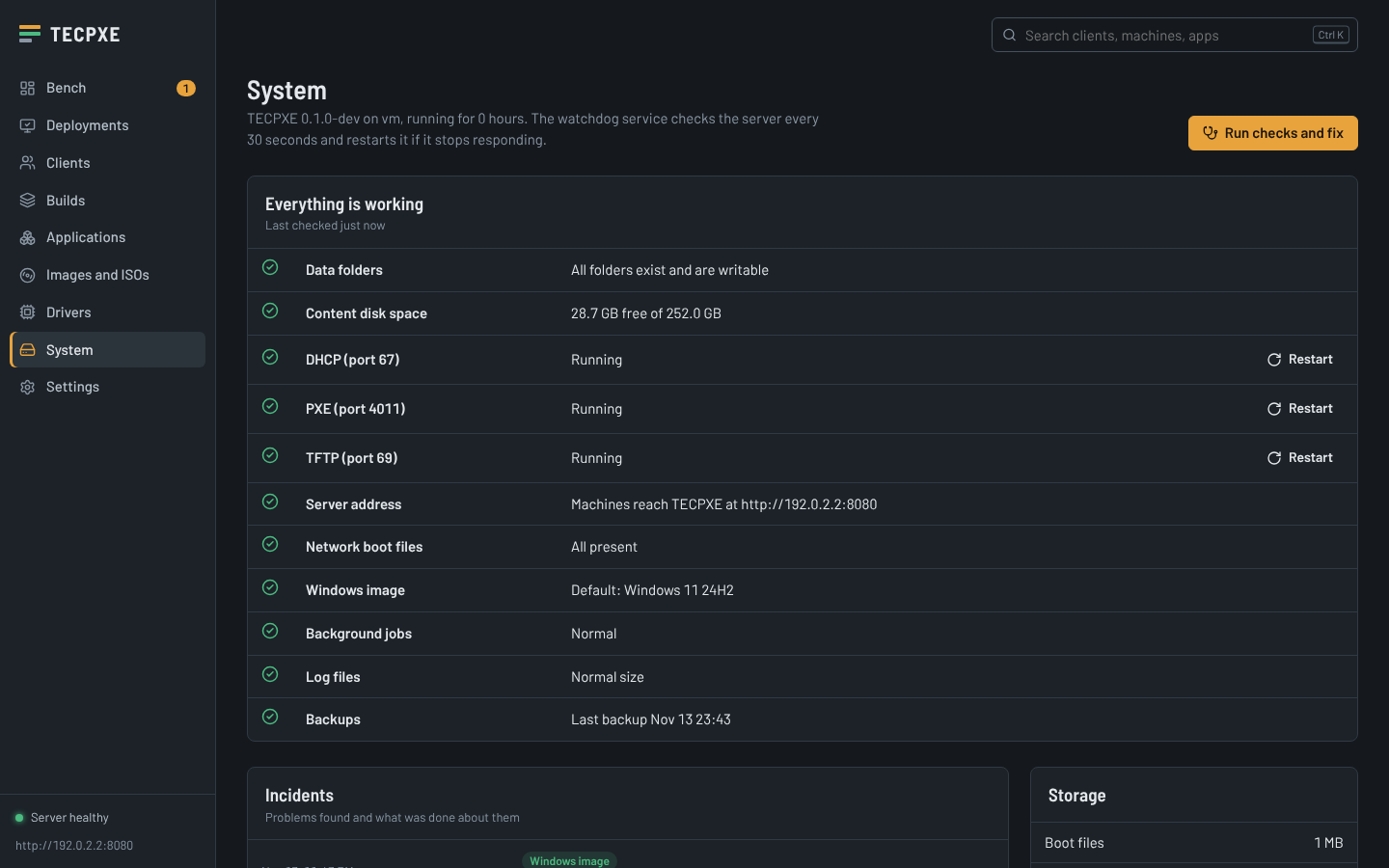
Installs as a service that starts with the computer. A watchdog restarts it if it stops responding, and a built-in checker finds and fixes common problems.
Stays on your network
Everything is served from your server. The only outbound traffic is the optional update checker, and you can switch it off for an air-gapped bench.
How a machine gets imaged
About two minutes of hands-on time, then the machine finishes on its own.
Network boot
Plug the PC into the imaging network and choose network boot (usually F12).
Pick the build
Choose the client and build at the machine or on the dashboard, or pre-stage it ahead of time.
Windows goes on
TECPXE partitions the disk, applies Windows, and adds the drivers for that model.
Apps install
After setup, applications, scripts, and settings install in order and report back.
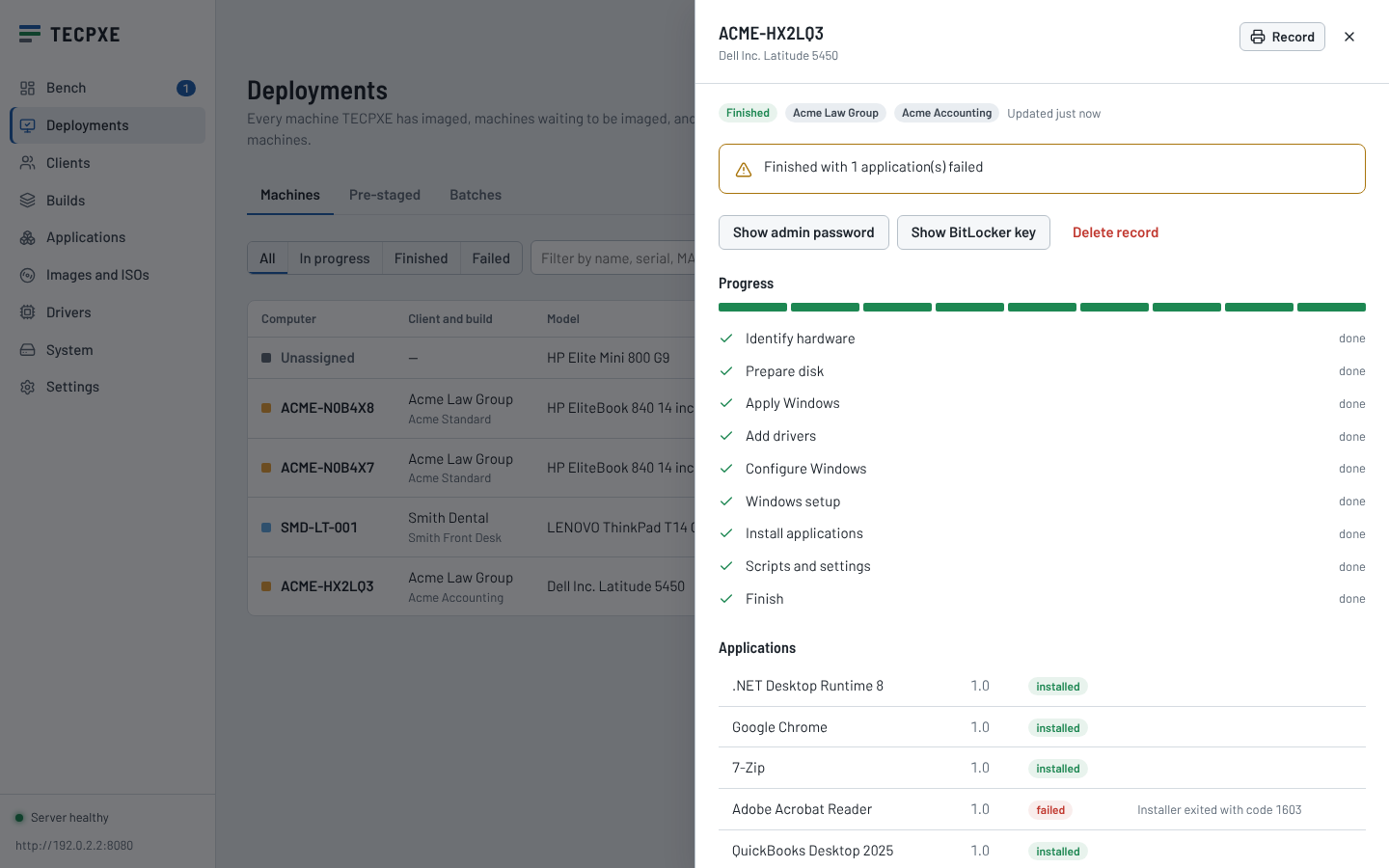
Ready to hand over
The machine record lists every app and version, the admin password, and the BitLocker key.
See it
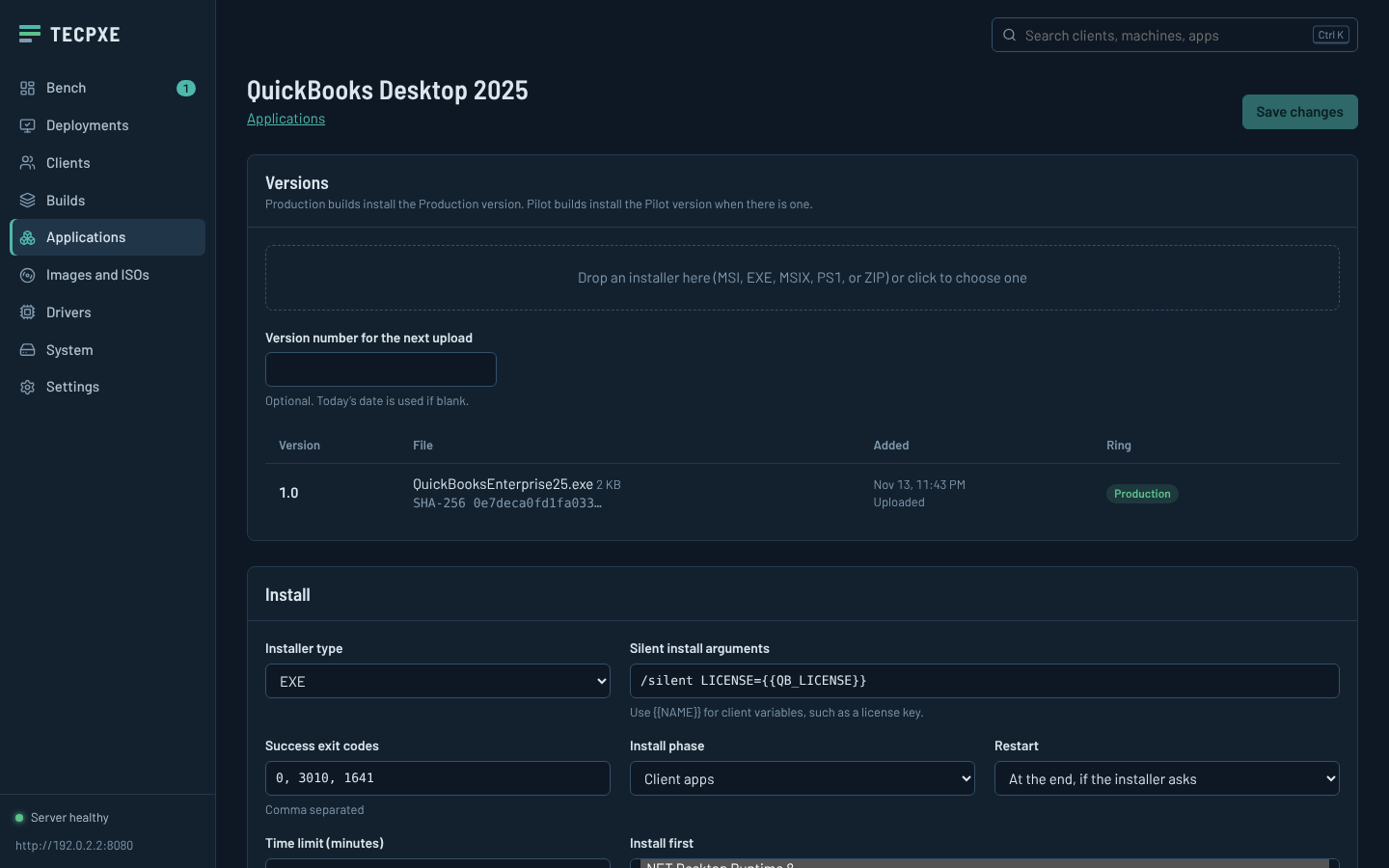
Four themes ship with TECPXE: Rack, Bench, Harbor, and Signal (high contrast).
Download and install
One setup file. No PowerShell, no command line. It takes about a minute.
Download
Download TECPXE-Setup.exe on the computer or server that will run TECPXE. Use one that is plugged into your imaging bench network.
Run it
Double-click it and click Yes when Windows asks for permission. If Windows shows “Windows protected your PC”, click More info, then Run anyway.
Click through
Click Next, keep the suggested storage folder (TECPXE picks the drive with the most free space), and click Install.
Finish setup
Click Finish. TECPXE opens in your browser and walks you through the rest. Next time, use the TECPXE icon on the desktop.
For Windows 10, Windows 11, and Windows Server 2016 to 2025 (64-bit).
Already installed? Run the new Setup over it. Your settings, clients, and files are kept.
Other platforms (not tested yet)
TECPXE also builds for Linux. These builds have not been tested on real servers yet.
- tecpxe-linux-amd64.deb for Ubuntu and Debian:
sudo apt install ./tecpxe-linux-amd64.deb - tecpxe-linux-amd64.tar.gz for other Linux: extract, then
sudo ./install.sh
What you need
- The TECPXE server
- Windows 10, Windows 11, or Windows Server 2016 to 2025, 64-bit. A desktop PC works for a small bench.
- Hardware
- 4 cores and 8 GB RAM minimum; 8 cores and 16 GB for a busy bench. 500 GB or more of free disk space.
- Network
- The server plugged into the same network as the imaging bench, ideally its own VLAN or switch.
- Windows
- A Windows 10 or 11 ISO from Microsoft or your volume licensing portal.
- Machines to image
- Any 64-bit PC that can network boot. Turn off Secure Boot while imaging.
- Not on the same server
- Windows Deployment Services (WDS). Setup warns you if it finds it.
Questions
Is TECPXE really free?
Yes. It is open source under the MIT license. Use it at as many MSP locations and for as many clients as you like.
Will it interfere with the DHCP server on my network?
No. By default TECPXE runs as ProxyDHCP: it only answers network boot requests and leaves addresses to your existing DHCP server. On an isolated bench switch with no DHCP server, you can let TECPXE hand out addresses instead.
Windows says “Windows protected your PC” when I run Setup. Is that safe?
Yes. Windows shows that for programs that are not yet signed with a paid code-signing certificate. Click More info, then Run anyway. You can check the file against the SHA-256 checksum on this page.
Who should install TECPXE?
Anyone who can install software on Windows. Setup asks one question (where to keep files) and the first screen in TECPXE walks you through the rest. No PowerShell or command line is needed.
How do I update TECPXE?
Download the newest TECPXE-Setup.exe and run it on the server. It stops TECPXE, updates it, and starts it again. Everything you set up is kept.
Something isn’t working on the server. What do I do?
Open TECPXE and go to System, then click Run checks and fix. If TECPXE will not open at all, open the Start menu, find TECPXE, and run Repair TECPXE. Restarting the server also fixes most problems, because TECPXE starts again on its own.
Do machines need Secure Boot turned off?
Yes, while imaging. TECPXE network boots with iPXE, which is not signed for Secure Boot. Turn Secure Boot back on afterward if the client needs it; Windows keeps working.
Can it install QuickBooks, TrialWorks, and other vendor software?
Yes. Upload the installer you get from the vendor, set its silent install arguments, and add it to a build. Store license numbers as client variables and use them in the arguments, like LICENSE={{QB_LICENSE}}. TECPXE can remind you to check for new versions of software it cannot download itself.
How does auto-update work, and can I turn it off?
Each application has its own setting: do nothing, tell me, download to Pilot, or download to Production. Downloads come from the winget catalog or a vendor link, and their SHA-256 hashes are checked. Pilot builds get new versions first so you can test them. There is also a switch that turns off all internet access.
Does it need a login?
No. TECPXE works without signing in and only accepts admin connections from private networks. Saved passwords, domain join accounts, and license keys are encrypted and can never be read back through the interface. If you want a password anyway, set one under Settings, Access.
What happens if the server reboots or TECPXE crashes?
TECPXE starts automatically with Windows. If it crashes, Windows restarts it. A separate watchdog service checks it every 30 seconds and restarts it if it stops responding, and the server checks itself too. Every incident is listed on the System page.
How is this different from FOG?
FOG captures and restores disk images, so each image is tied to the hardware it was made on. TECPXE installs Windows from Microsoft’s own image and adds drivers and applications at deploy time, so one build works on every model. It also adds per-client settings, application updates, and driver catalogs.
How is this different from SCCM or MDT?
SCCM needs SQL Server, Active Directory, site servers, and licensing, and it is built for one organization. Microsoft retired MDT in January 2026. TECPXE is one program with a web interface, built around many clients.
Can I image many machines at once?
Yes. Every machine on the bench images independently. Start a batch to send one build to the next 25 machines that boot, or import a list of serial numbers from the packing slip so those machines install themselves.
Does it work with Linux machines?
Linux and utility ISOs (Memtest, GParted, Clonezilla, and others) boot from the TECPXE menu. Automated Linux installs are on the roadmap.
Where is my data stored?
On your server only. Settings and history are in C:\ProgramData\TECPXE, and ISOs, Windows images, installers, and drivers are in the storage folder you picked during Setup. Settings and history are backed up every night.